📄 Rating a Package / Purchase a Label

Rating a Package and Purchasing a Label


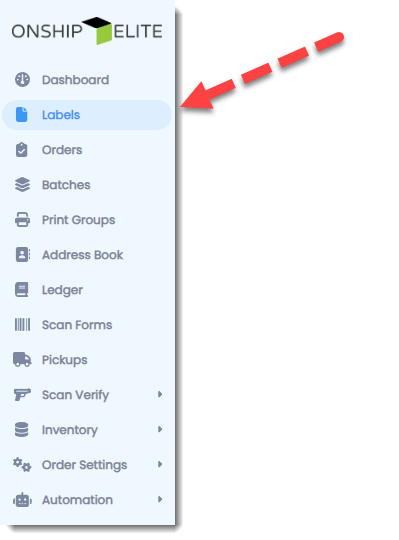
To rate a package a get a shipping cost click "Labels" on the left side menu

On the Right Side of screen click the "Purchase Label" Button

Click "Labels" on the left side menu and fill in necessary details

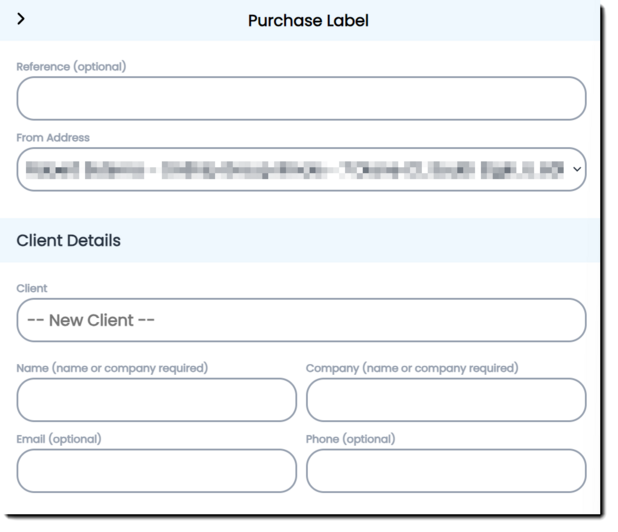
-- Purchase Label Fields --

  • Reference - (optional) reference is searchable item and will print on the shipping label

  • From Address - This is the "Ship From" address also address where package is rated from. You can have multiple "Ship From" address's.

    -- Client Details Fields --

  • Client - allows you to search the address book

  • Name - Name or Company is required

  • Company - Name or Company is required

  • Email - (optional) This is used to send shipment details if the option is setup.

  • Phone - (optional) needed for international shipments

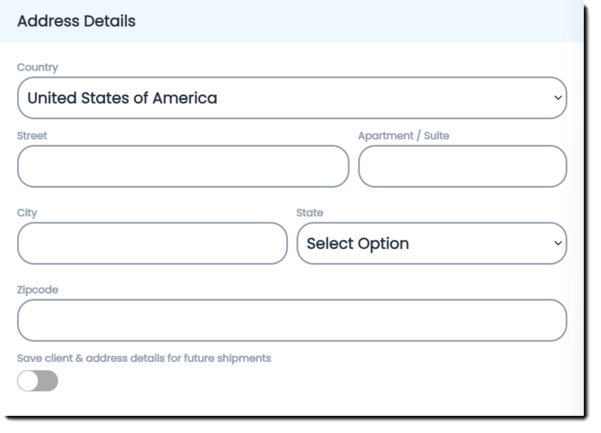
-- Address Details Fields --

  • Country - Defaults to USA

  • Street - Required

  • Apartment / Suite - Apartments/Suites should always be separated from the street field

  • City - Required

  • State - Required

  • Zipcode - Required


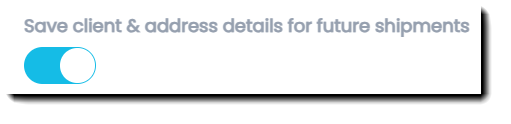
Save Client option switch - if turned on will save Client details and Address details to address book

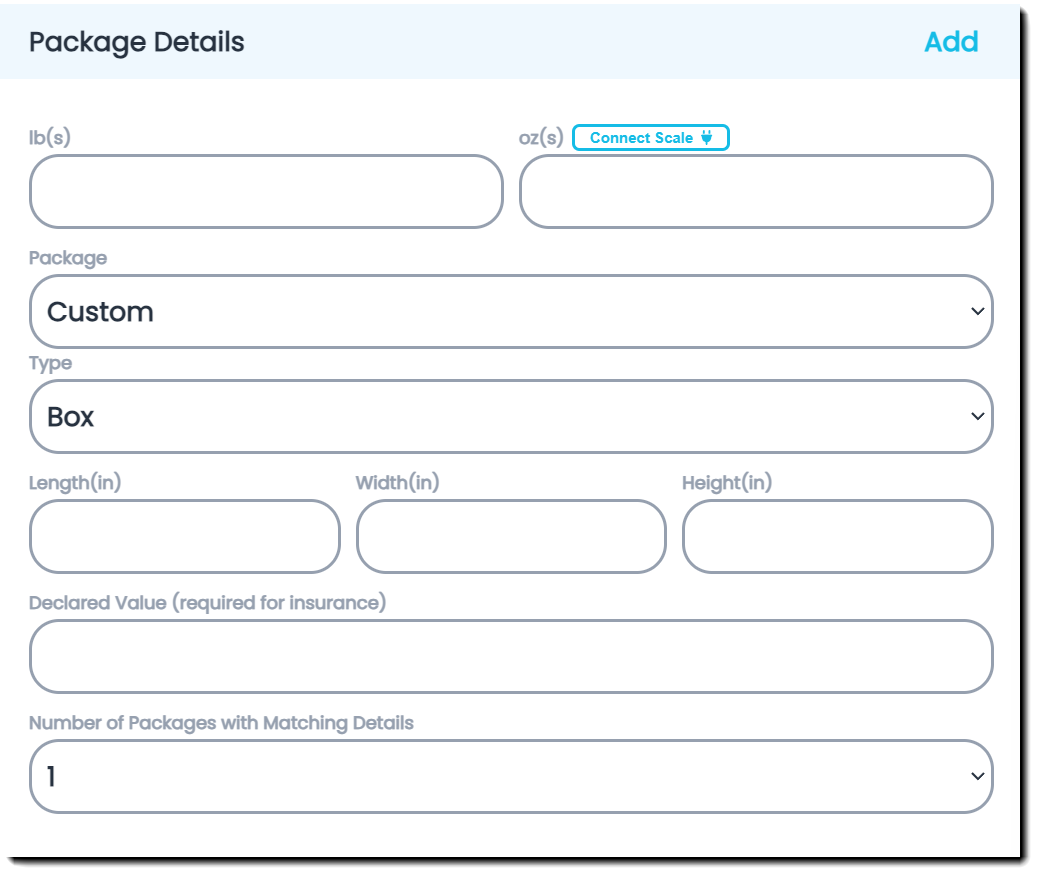
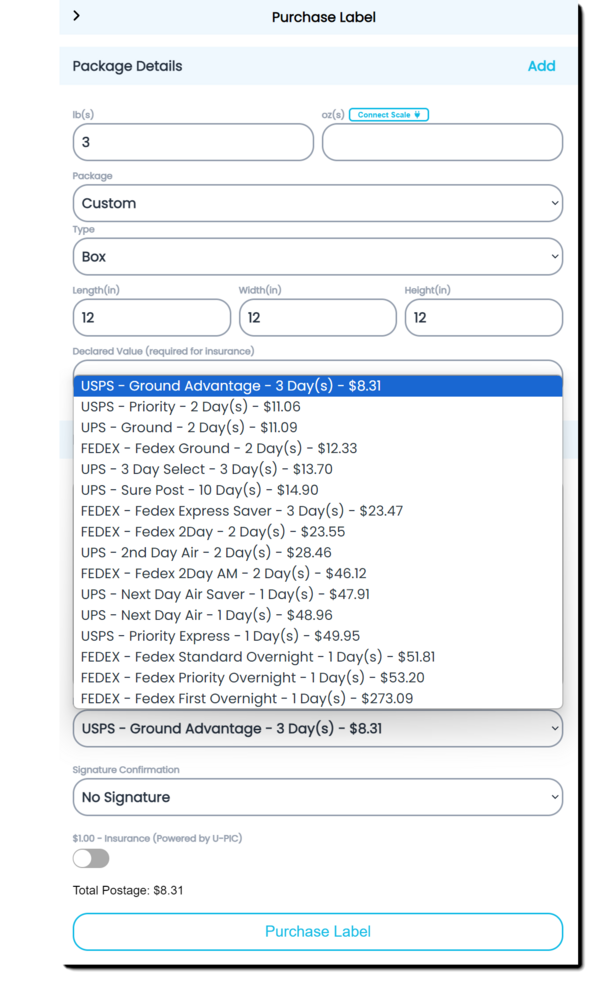
-- Package Details Fields--

Clicking "Add" generates a multi-package shipment

(Package Details need to be entered in for all packages in shipment)

  • lb(s) - Enter weight if package in pounds

  • oz(s)- Enter weight if package in ounces

    Clicking "Connect Scale" will allow you to use a USB Scale

  • Package - Drop down to select common package sizes

  • Type - Types of common packages

  • Declared Value - required for insurance

  • Number of Packages with Matching Details - multiple packages of the same size and weight can be selected

-- Item Details --

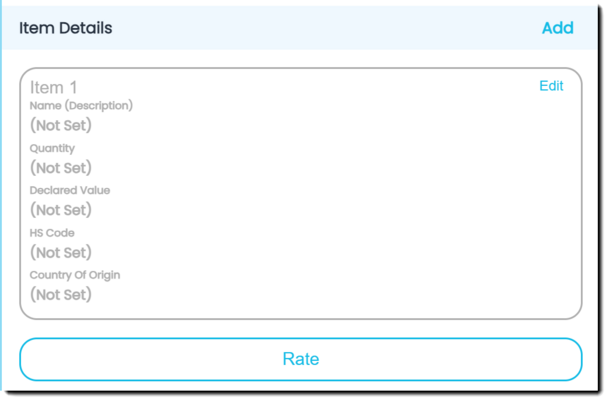
Clicking "Add" to add items to Packing List or items to international shipments customs forms

Once you click add you will see it add an item (See below)

Click "Edit" to enter the details

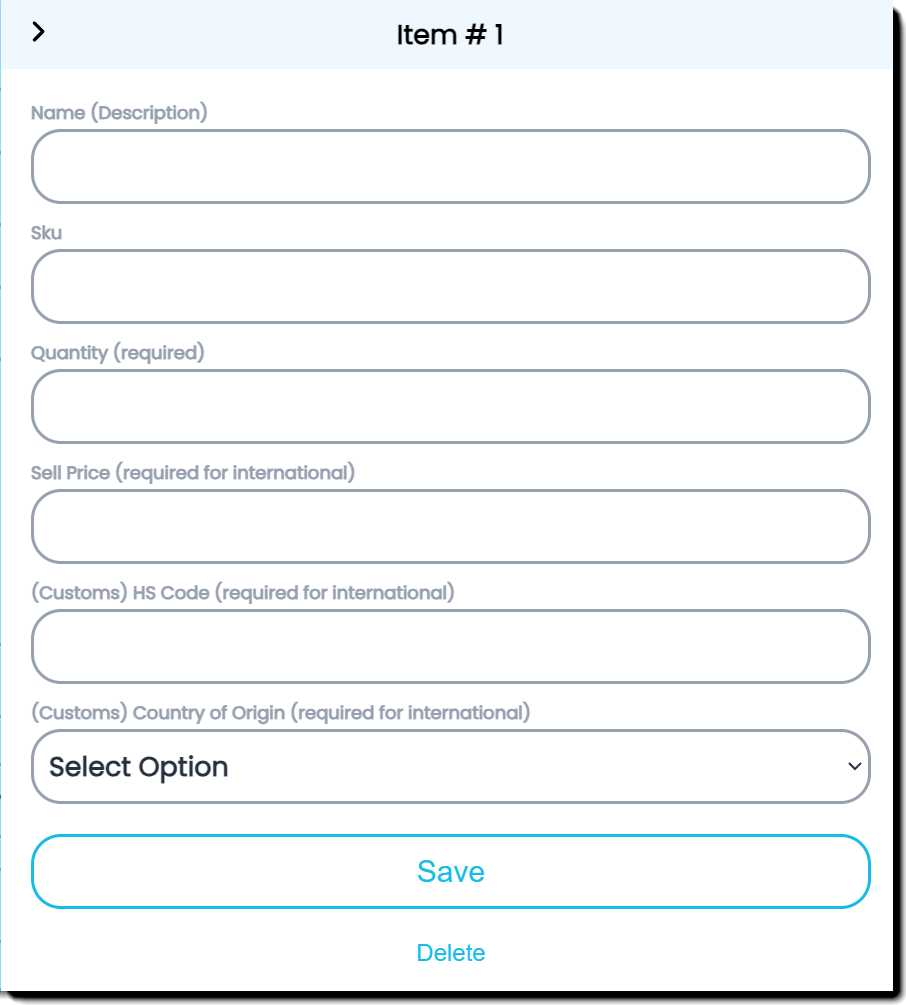
-- Item Details -- (Enter Item details and click Save)

  • Name - Name of the item {prints on packing list}

  • Sku - Sku/Item number if used {prints on packing list}

  • Quantity - (Required) number of items {prints on packing list}

  • Sell Price - Used for International

  • HS Code (Customs) - Harmonized  System code Used for International

  • Country of Origin (Customs) - Used for International

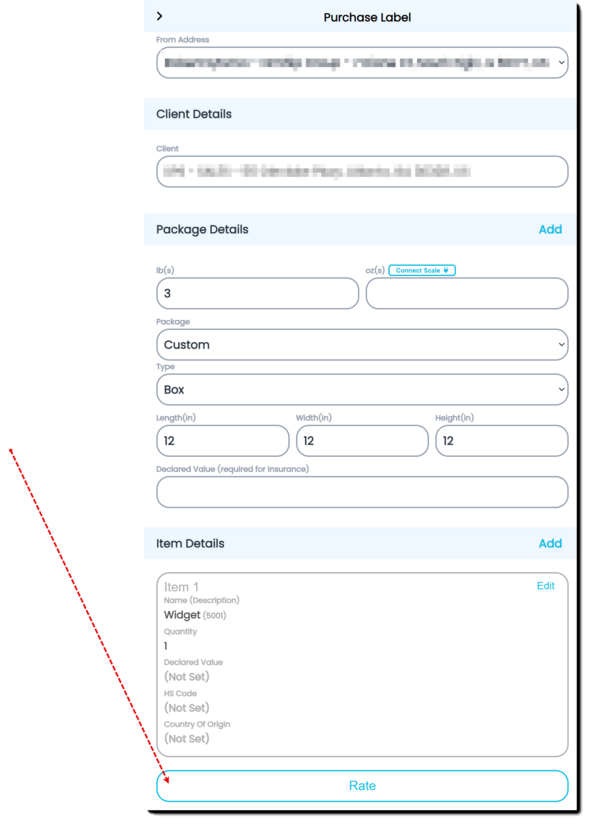
Click "Rate" button

Rates will appear in drop box Ascending (lowest to highest) order

The number of days carrier will take to deliver is displayed along with the cost

Select the Rate you want and click the "Purchase Label" button

Select the Rate you want and click the "Purchase Label" button

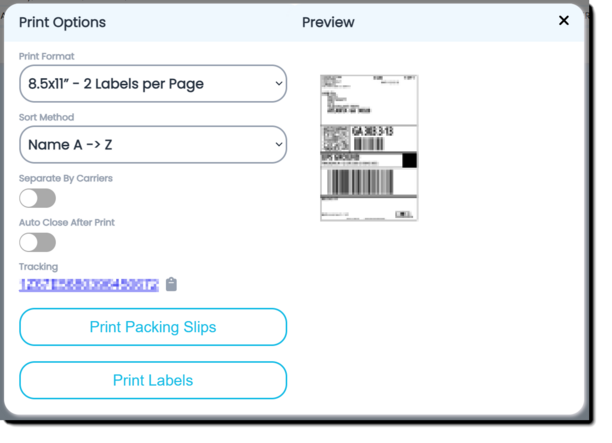
Select the Print Format 8.5x11 or 4x6 label and

print the shipping label or Packing Slips

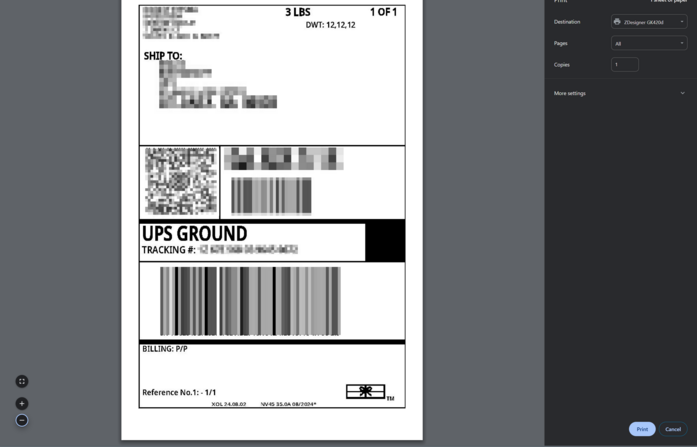
Select the windows printer and click the Print button